How to Approve FINNY's Enterprise Application in Entra ID
Last updated: January 22, 2026
Overview
This knowledge base article walks through the complete process of removing an existing Finny V2 Enterprise Application (if present) from your Microsoft Entra ID (formerly Azure AD) tenant and installing the latest Finny V2 application. This process is required when users experience issues integrating their email with FINNY or when permissions need to be refreshed.
Follow the steps below carefully to ensure a successful integration.
Prerequisites
Microsoft Entra ID Global Administrator or Application Administrator permissions
Access to the FINNY application
The user’s email address (UPN) that will be integrated with FINNY
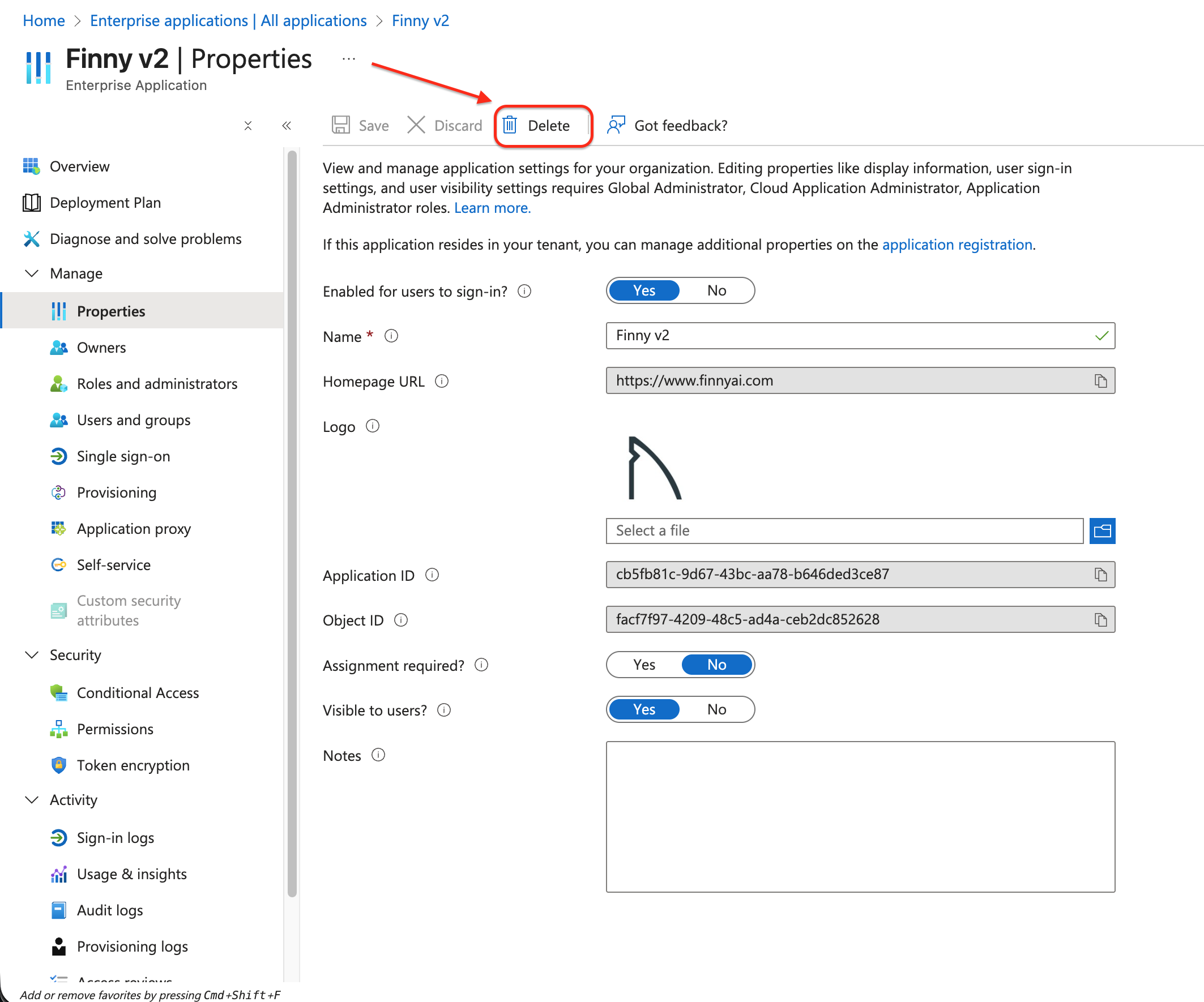
Step 1: Delete the Existing Finny V2 Enterprise Application (If Applicable)
Sign in to the Microsoft Entra admin center.
Navigate to Identity → Applications → Enterprise applications.
Search for Finny V2.
If an existing Finny V2 application is present:
Select the application.
Choose Delete.
Confirm the deletion when prompted.
⚠ If no Finny V2 Enterprise Application exists, you can skip this step and proceed to Step 2.
Step 2: Download and Install the New Finny V2 Application
Open the following link in your browser (while signed in as an admin):
Review the permissions requested by the Finny V2 application.
Accept the permissions to add the application to your Entra ID tenant.
Step 3: Assign Users to the Finny V2 Enterprise Application
In the Microsoft Entra admin center, go to Identity → Applications → Enterprise applications.
Select Finny V2 from the list of applications.
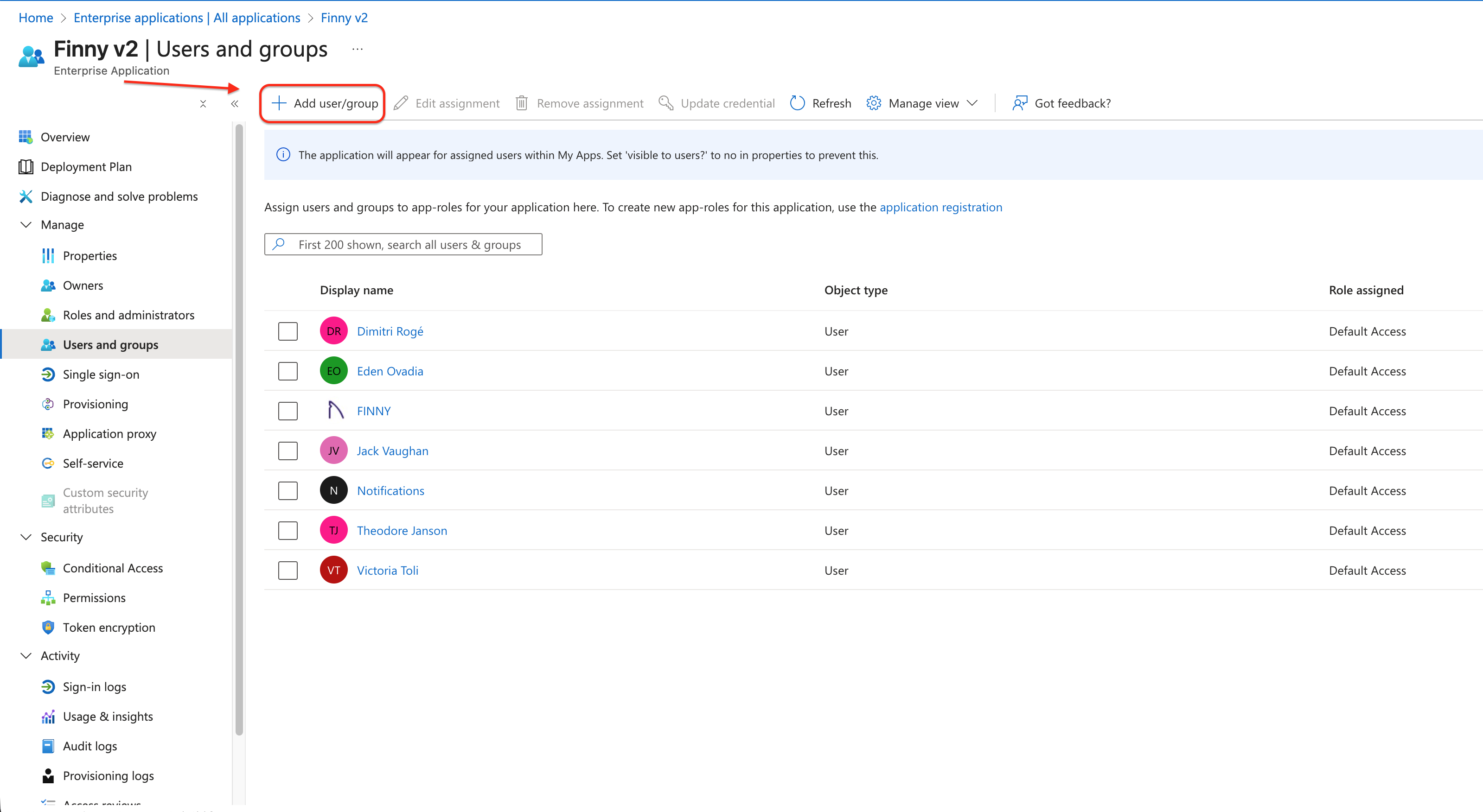
Navigate to Users and groups.
Click Add user/group.
Assign the user by selecting their UPN (email address).
Save your changes.
✅ The assigned user must match the email address they are attempting to integrate within FINNY.
Step 4: Grant Admin Consent Under Permissions
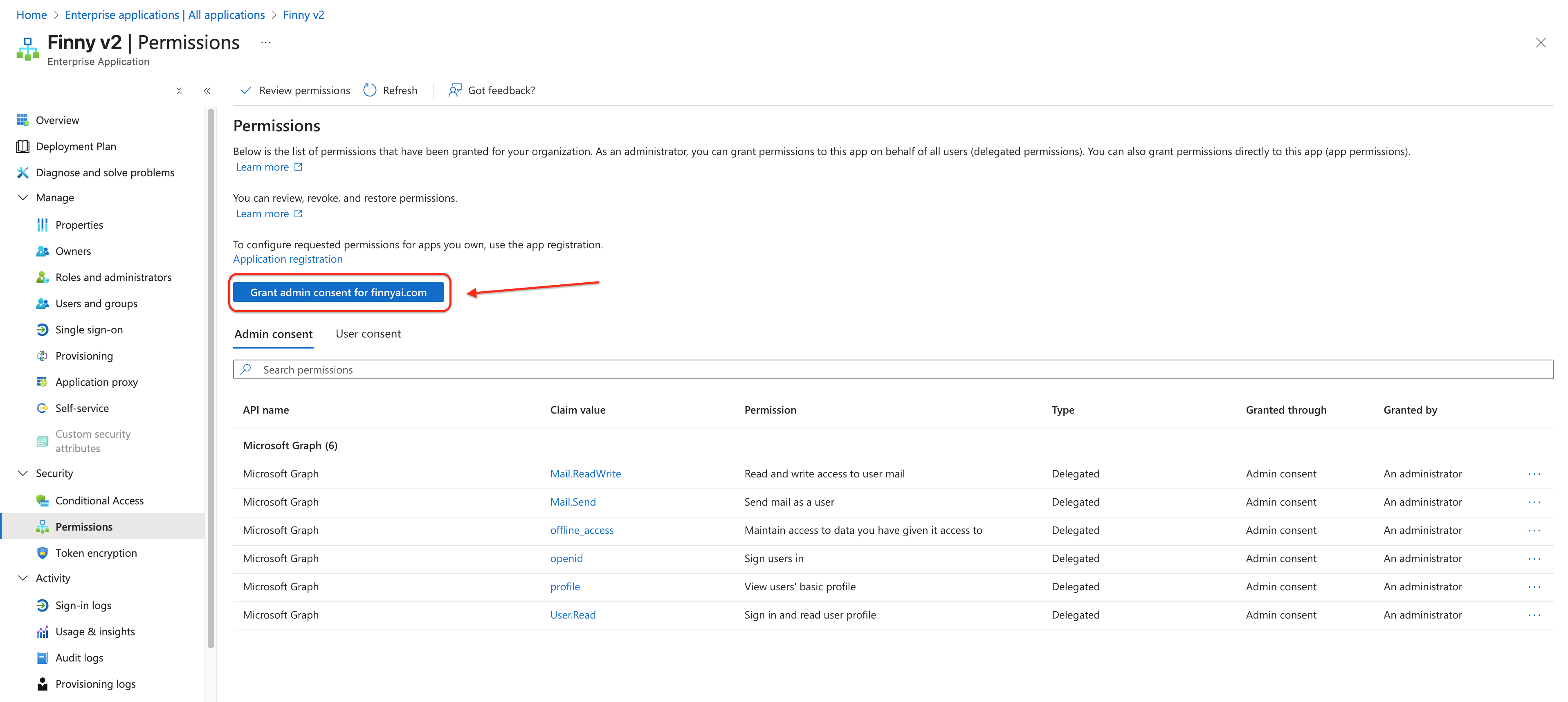
Within the Finny V2 Enterprise Application, navigate to Permissions.
Review the permissions requested by the application.
Click Grant admin consent for .
Confirm the consent when prompted.
Step 5: Approve Admin Consent Requests
Return to Enterprise applications → All applications.
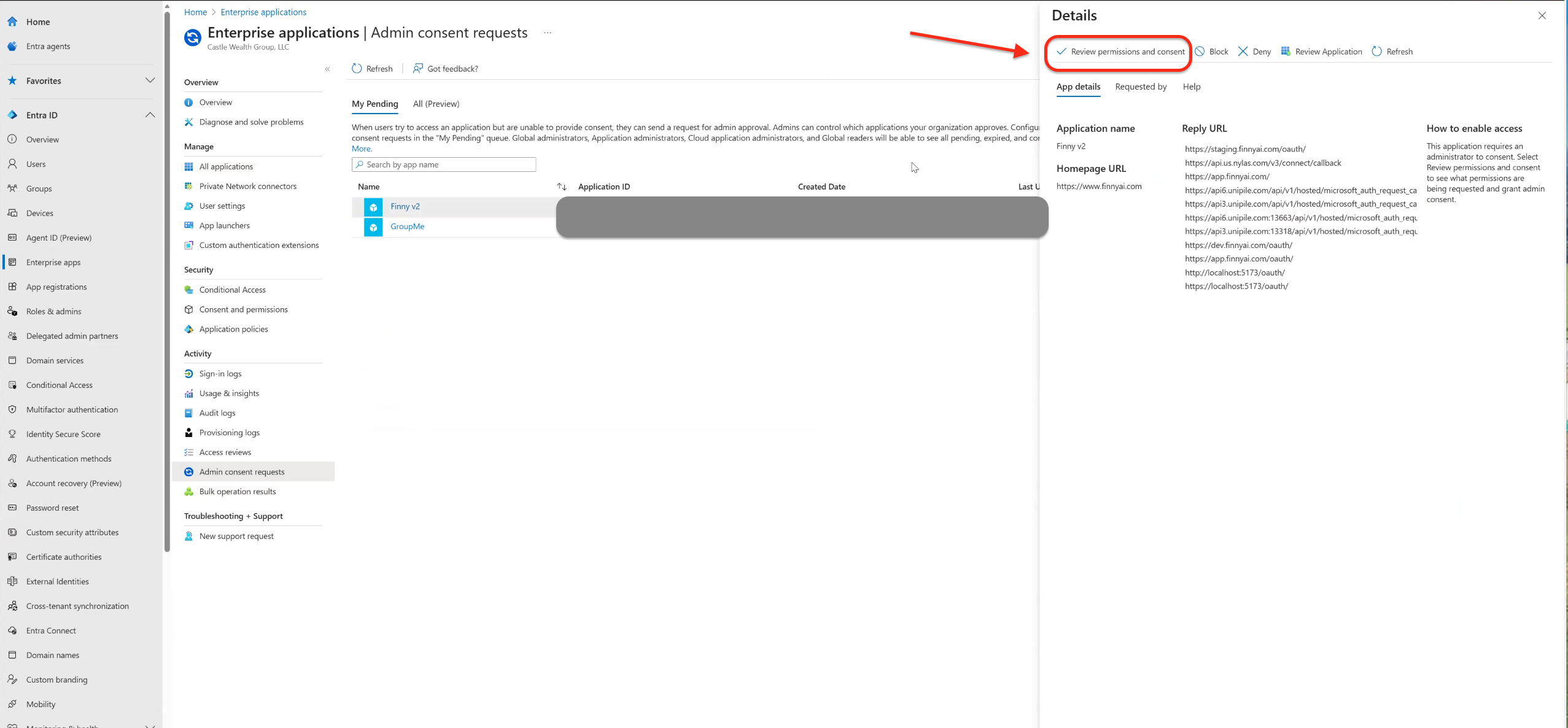
In the left-hand menu, select Activity → Admin consent requests.
Under My Pending, locate Finny V2.
Select the request and grant the appropriate permissions for the application.
Step 6: Re-run the Email Integration Flow in FINNY
Ask the user to sign in to FINNY.
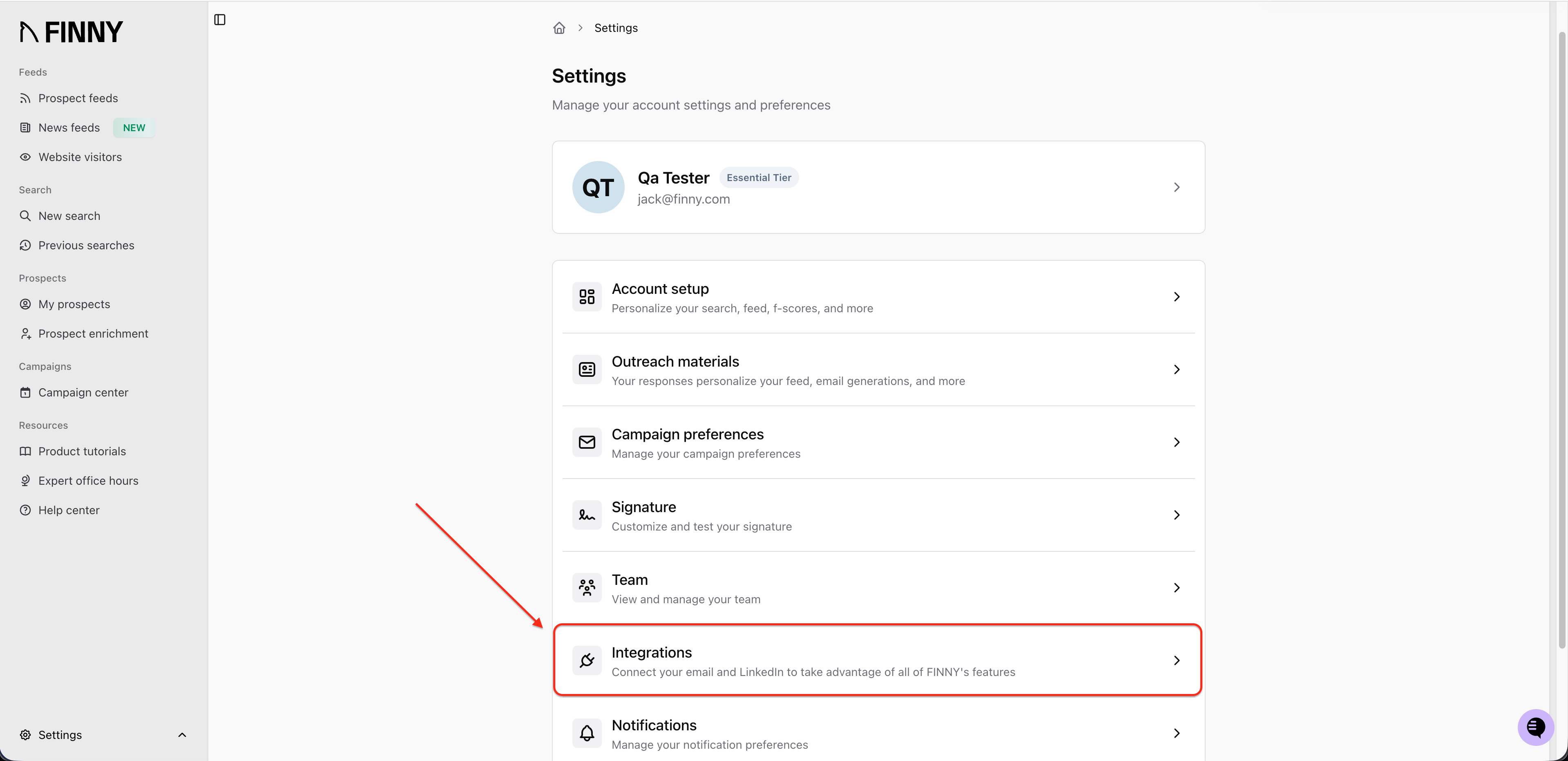
Navigate to Settings → Account → Integrations.
Select the email integration option.
Complete the integration flow again using the same email address assigned in Entra ID.
Step 7: Contact FINNY Support if Issues Persist
If the user is still unable to integrate their email after completing all the steps above:
Contact support@finny.com
Include the following details in your message:
Tenant name
User email address (UPN)
Approximate time the integration was attempted
Our support team will investigate and help identify any remaining issues.
Summary
Reinstalling the Finny V2 Enterprise Application and re-granting permissions resolves the majority of email integration issues. Ensuring the correct user assignment and admin consent is critical for successful operation.
If you have any questions or need assistance, please reach out to FINNY Support.